Configuring VoiceboxMD concerns adjusting the default settings to meet your needs. For example, you may want to use templates to keep your transcripts consistent and minimize duplication during the transcription process.
In the Control Panel, you can also update your profile details and manage microphone settings.
The Control Panel is also applicable for troubleshooting. For instance, If you need VoiceboxMD to recognize specific words or technical terms, you can add them to the built-in dictionary.
To access the Control Panel, click on the VoiceboxMD icon in the top bar and select Settings.
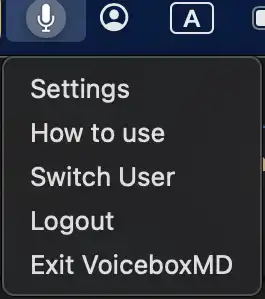
The Control Panel has five tabs: Settings, Templates, Phrases, Transcripts, and Vocabulary.
VoiceboxMD works well with the default settings. However, you can customize the app to meet your specific needs.
Take a look at the table below to learn some detailed guidelines for implementing the most common configuration changes.
| Tab | Setting | About |
| Settings | General settings, like updating profile details and technical defaults enhance user experience. | |
| Settings | Please contact VoiceboxMD support to change your email address. | |
| Settings | Microphone | The microphone detected by VoiceboxMD will be automatically selected. |
| Settings | Password | Change your password after logging in for the first time with a temporary password assigned by VoiceboxMD. |
| Settings | NAICS Code | NAICS stands for the North American Industry Classification System. It assigns different codes to transcription services based on the industry, such as medical. |
| Settings | CPM Delay | This allows you to adjust the time delay between your speech and the audio transcription, You can increase the delay in seconds to give VoiceboxMD more time to process your audio. |
| Settings | Change Language | Choose the language for transcription. |
| Settings | Turn on App Diagnostics | Enable this to view the app’s logs for troubleshooting. |
| Settings | Remote Desktop Mode | This option can help to troubleshoot unstable connections if you are using a virtual machine. |
| Settings | Fallback Recognition | It is recommended that this option be turned off. However, if your dictation accuracy differs from what you expected, you can turn it on. |
| Settings | Enable HUD | The Heads-up Display shows some of your options as you start speaking. |
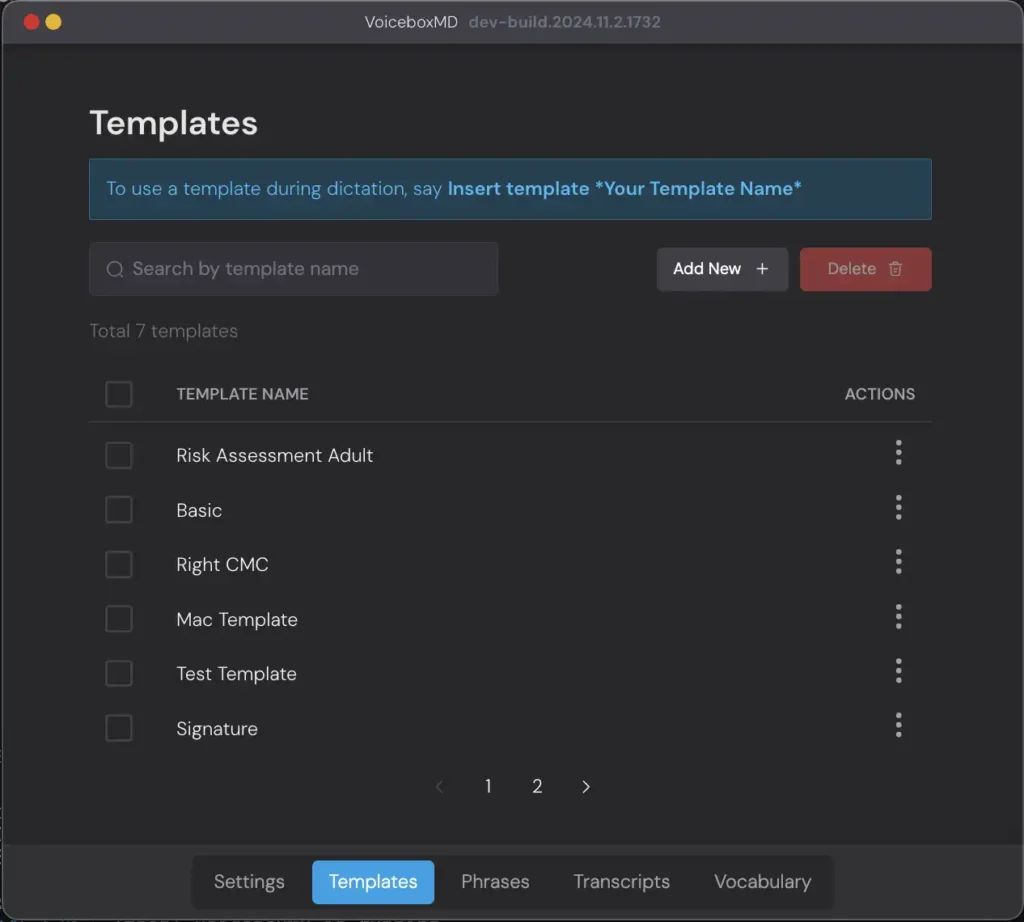
| Templates | A list of existing templates and an option to create new templates. | |
| Phrases | Allows you to dictate words or phrases that might be challenging to understand or spell while indicating how they should be accurately transcribed. | |
| Transcripts | List of existing transcripts and option to add new ones. | |
| Vocabulary | Add custom words to VoiceboxMD’s dictionary for accurate transcription of specialized words. |
Setting up your microphone #
VoiceboxMD automatically detects your Microphone. If you need to adjust it:
- Go to Settings in the Control Panel.
- Under Microphone, click Change Device.
You will be redirected to the Sound settings page in Windows Settings, choose the input device, and troubleshoot.
Managing custom words in VoiceboxMD’s built-in dictionary #
VoiceboxMD allows you to extend its vocabulary by adding custom words to its dictionary, making it easier to remember unique or specialized words related to your needs.
To add new words:
Go to the Vocabulary tab in the Control Panel.
- Click Add New + Button
- Type the word you want VoiceboxMD to recognize
- Select Save
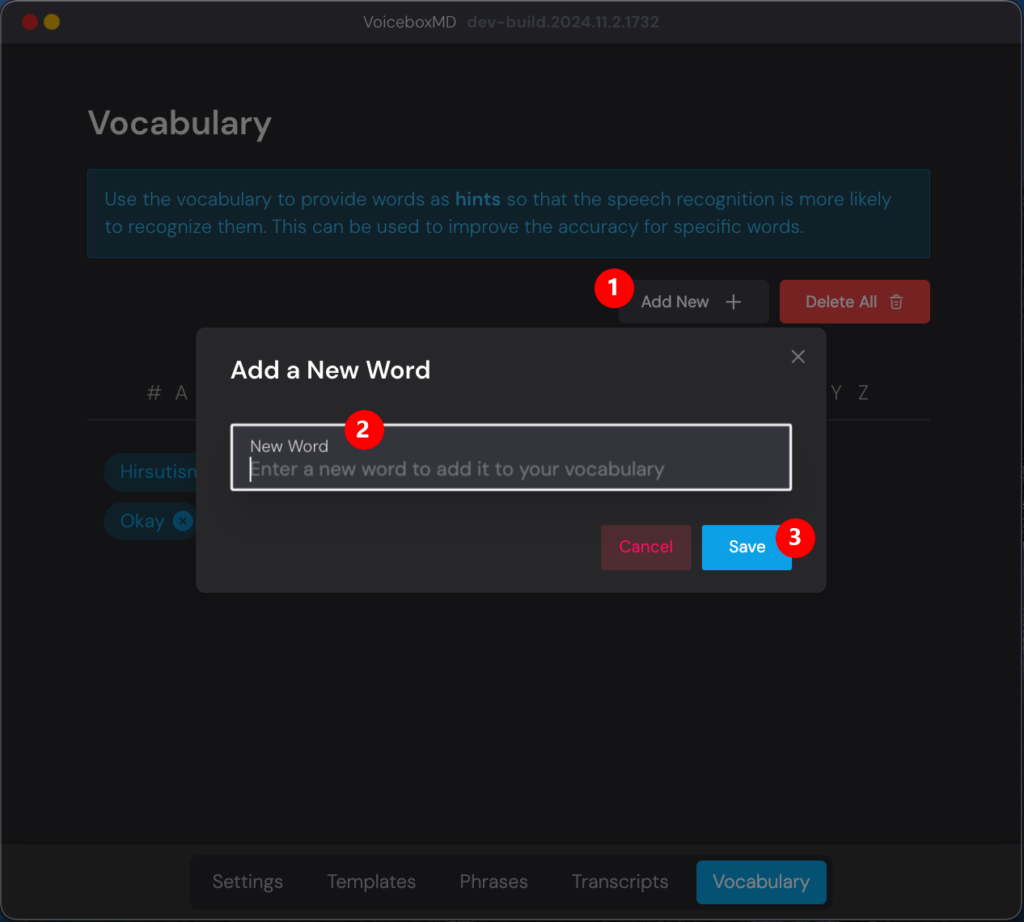
To remove all the custom words you have included in VoiceboxMD’s dictionary, select Delete All (1).
To remove a specific custom word, click the X icon beside the word you want to delete(2).

Managing templates to reduce duplicated dictation #
Templates help you increase efficiency and reduce duplicated effort by inserting pre-defined text quickly. A simple and useful template like contact information, something many medical professionals often need to type repeatedly during their day.
- To use a template during dictation, say, “Insert template [Your Template Name]*.
- To manage templates: open the Templates tab in the Control Panel.
- To add a new template: click the Add New + button.
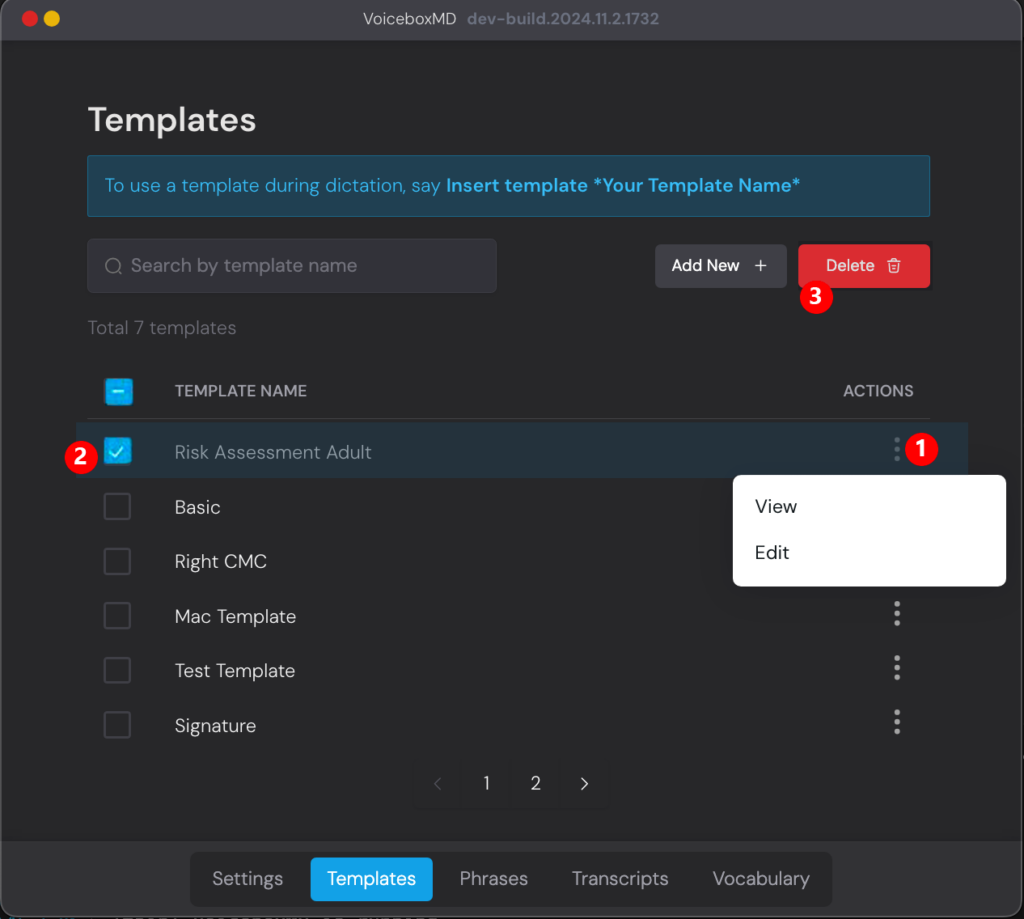
- To edit a template: click on the three dots in the ACTIONS column and select Edit (1).
- To delete a template: select one or more templates (2).
- Click Delete (3).
Managing phrases to reduce transcription errors #
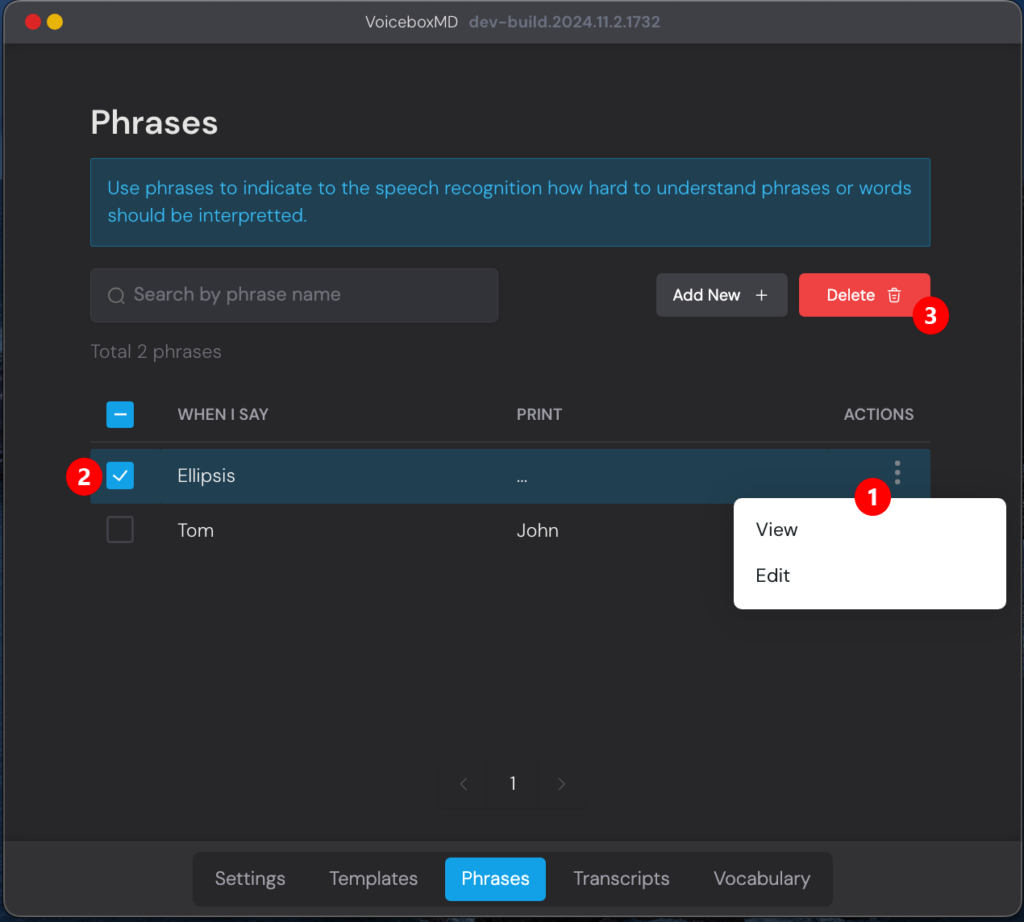
VoiceboxMD allows you to record phrases as shortcuts for commonly used sentences or phrases VoiceboxMD transcribes incorrectly. This can save time and improve transcription accuracy. You can manage this on the Phrases tab in the Control Panel.
- To edit a phrase: click on three dots in the ACTIONS column, and select Edit (1).
- To delete a phrase: select the phrase or phrases (2).
- Click Delete (3).
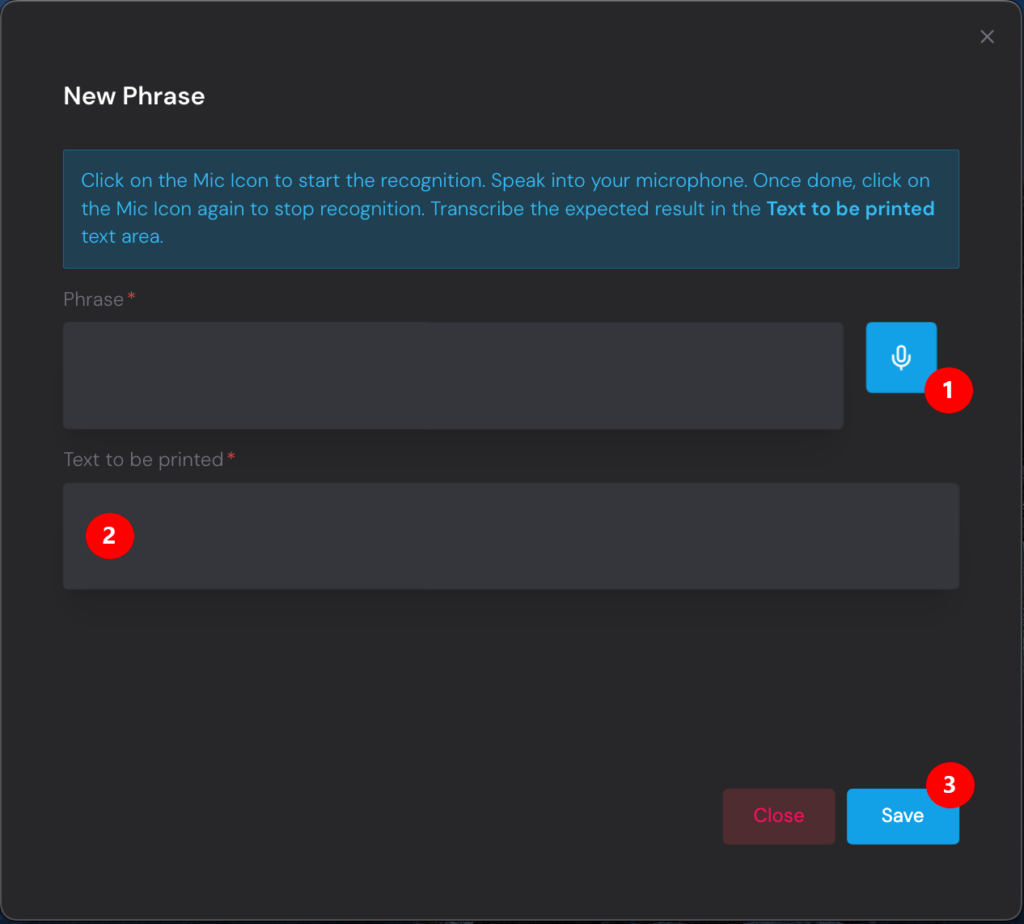
Recording a phrase #
To record a phrase:
- Click the Microphone icon to start the audio listener (1).
- Speak to the microphone and click the microphone icon again to stop recording.
- In the Text to be printed field, type how the phrase should appear (2).
- Click Save. (3).
Tip: You can create audio shortcuts for sentences you use frequently. For example, you could set up VoiceboxMD to insert “First examination” when you say “X1.”