Transferring your notes from iOS to Pc or your EHR on Windows using VoiceBoxMD is a simple process. Follow these steps to ensure your notes are synchronized and easily accessible on your Windows device.
Before you begin, make sure the VoiceboxMD Windows application is installed and ready to use. If you don’t have it yet, download and install it now.
Step 1: Access Your Notes on Windows #
- Log in to VoiceboxMD on your Windows.
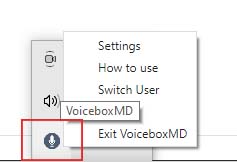
- Right-click on the VoiceboxMD Microphone icon in the system tray.
- Select Settings from the dropdown menu.
- Voicebox Control Panel will appear.
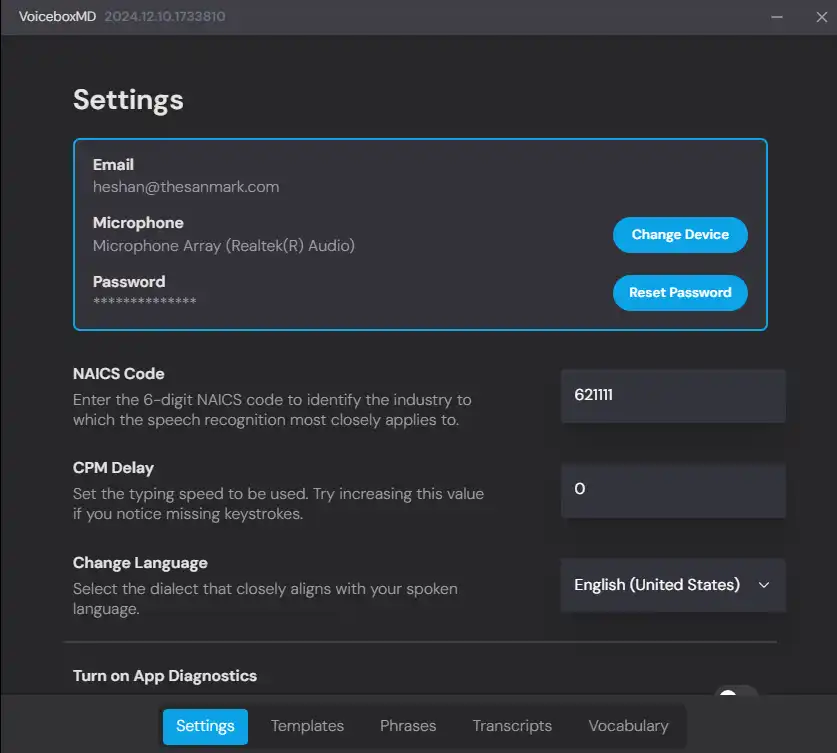
Step 2: Copy and Paste Your Note #
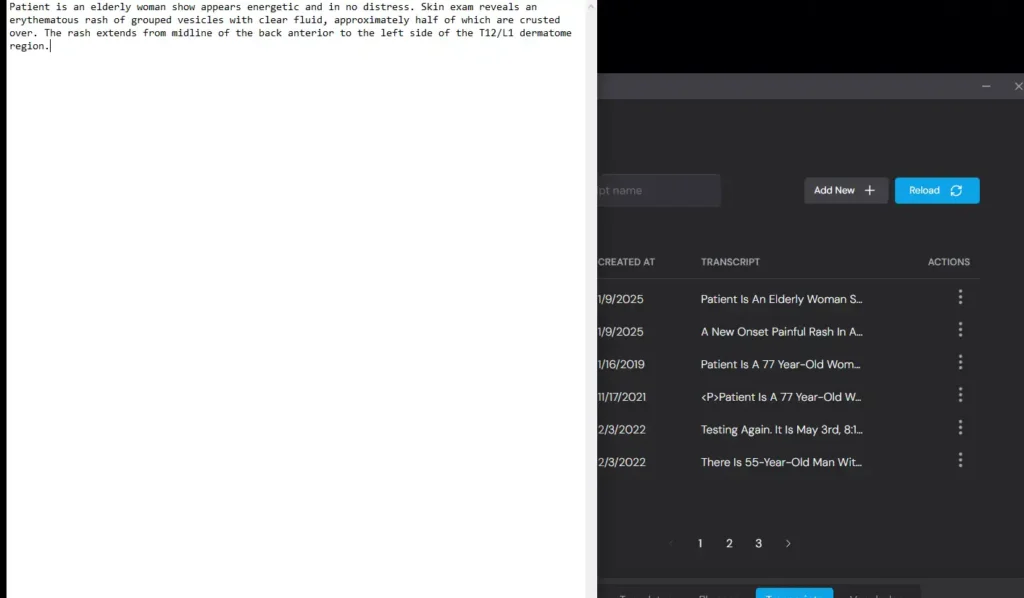
- In the Transcripts tab, you can find the notes created in the iOS app.
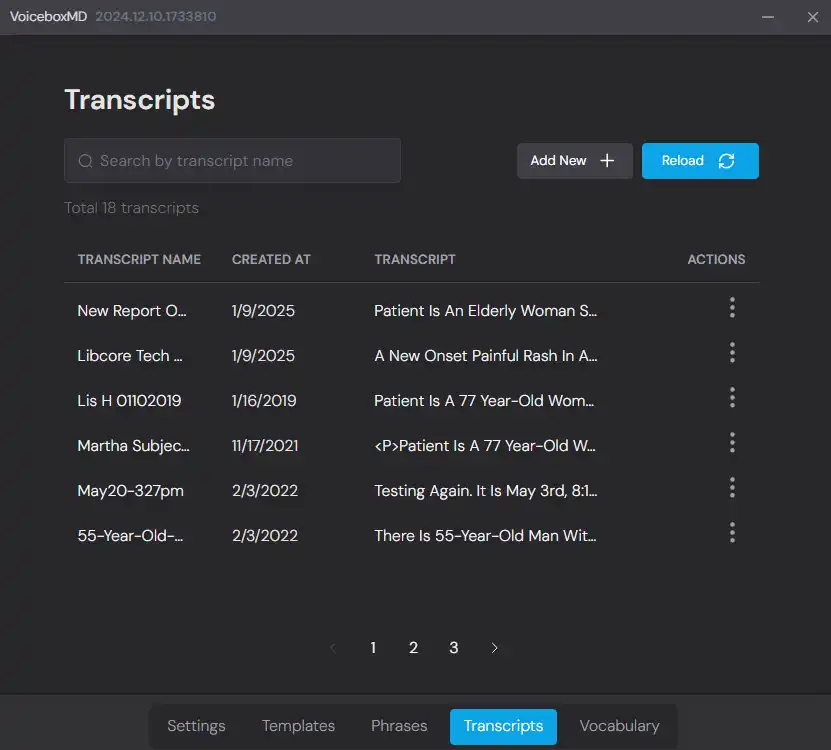
- Select the note you want to copy.
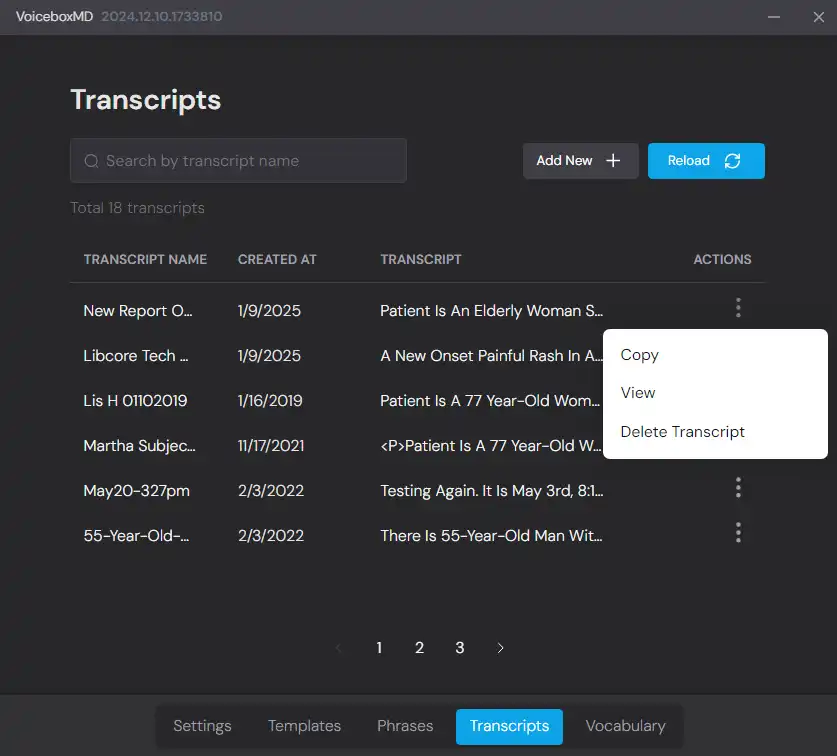
- Click on the three dots under the ACTIONS column.
- Select Copy from the options.
- Navigate to the desired location and paste the note where needed.
- Your note is now successfully transferred and ready for use.
Need Help? #
If you have any questions or need assistance, feel free to reach out to us at support@voiceboxmd.com