VoiceboxMD is incredibly easy to use. Its power lies behind the scenes. With a few configuration tweaks, you may customize it to suit your needs and reduce voice recognition errors.
Tip: We recommend you set aside an hour or two to read this manual and familiarize yourself with the VoiceboxMD interface so you can take full advantage of its rich features. Doing a few trial transcripts will help you to identify any transcription issues, which you can resolve by ‘teaching’ VoiceboxMD new words and phrases via the Control Panel.
To open the Control Panel, first double-click the VoiceboxMD app on your desktop to launch it. Then, right-click the VoiceboxMD icon in the Windows system tray and select Settings.
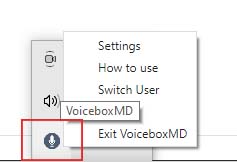
There are two steps to getting started before you start transcribing audio.
- Ensure you have selected the correct microphone. To do this, on the Settings tab in the Control Panel, select Change Device. You will be redirected to Windows Settings, where you can select your input device.
- Check your settings in the Control Panel. For instance, make sure you have selected the correct input language.
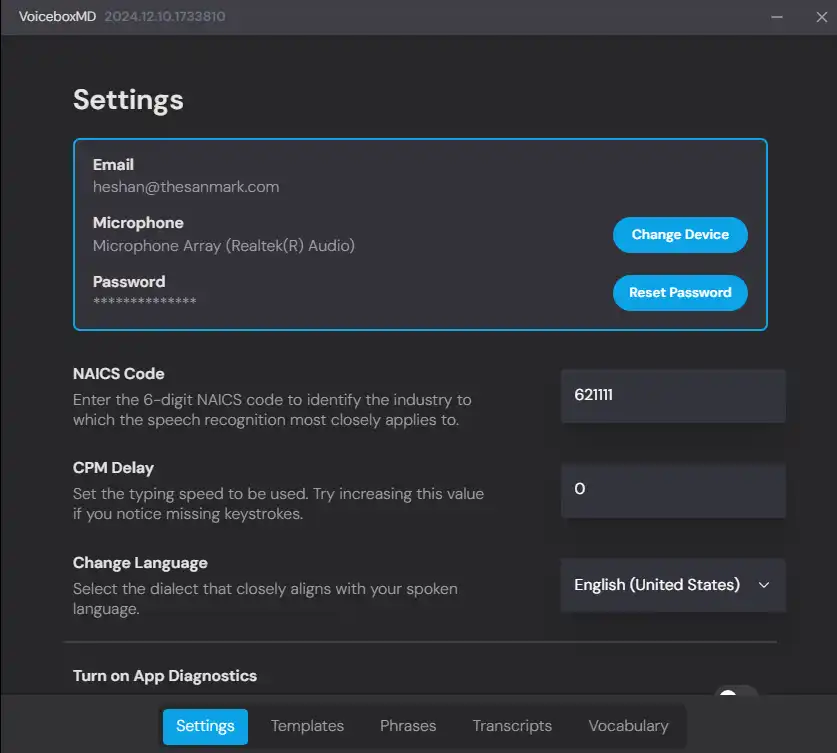
There are three steps in a typical workflow when you transcribe audio to a document.
- Open the document into which you wish to transcribe the audio. You may use any word processing program, text file, or EHR application.
- Switch on VoiceboxMD. To do this, click on the microphone in the VoiceboxMD interface. Wait a few seconds to wake VoiceboxMD up and then start talking.
- Place your cursor at the location in the document where you wish VoiceboxMD to start typing your audio.
- When you are finished, click on the microphone icon again to switch the listener off.

After you’ve practiced a few transcriptions with VoiceboxMD, you may streamline the VoiceboxMD experience by teaching it your requirements, much as you would a human transcriptionist.
- To do this, take a look at your experimental transcripts and identify any errors, especially those that appear to happen repeatedly – these are pretty easy to fix. On the Phrases tab in the Control Panel, record phrases that VoiceboxMD seems to be getting wrong and correct the phraseology. You may also add jargon and spelling typical to your medical niche to VoiceboxMD’s built-in dictionary on the Vocabulary tab in the Control Panel.