Follow these steps to install VoiceboxMD on your Windows device:
Step 1 – Download and install the app #
When you sign up to use VoiceboxMD (or when you trial it), you will receive an email with:
- A link to the installation file.
- Temporary login details (can be updated later from the Control Panel.)
- Download the latest version of VoiceboxMD.
- Double-click the downloaded file (VoiceboxMD.msi) in your Downloads folder to begin the installation process.
Note: If you are using Internet Explorer, click Run in the dialog at the bottom of the screen to proceed with the installation.
Windows will now assist you in navigating the installation process.
Step 2 – Bypass Security Prompts #
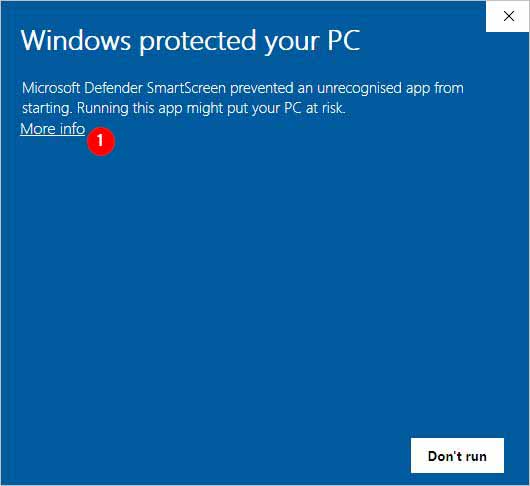
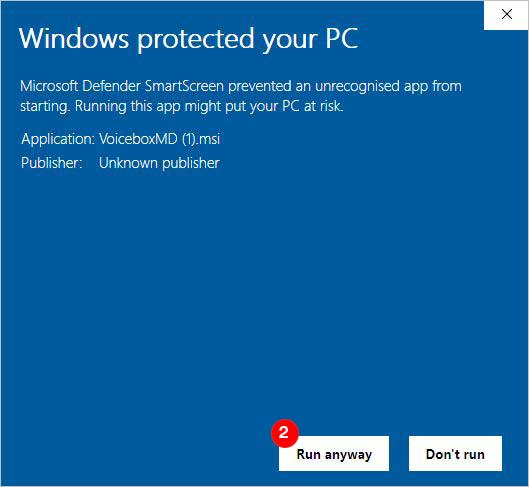
In certain situations, and based on your security configurations, your anti-virus software might alert you about the installation of the app. This serves as a preventive measure.
If you encounter a security prompt during installation, here’s how to move forward:
- Click More Info (1), and then select Run Anyway (2) to continue.
Step 3 – Install VoiceboxMD Using the Setup Wizard
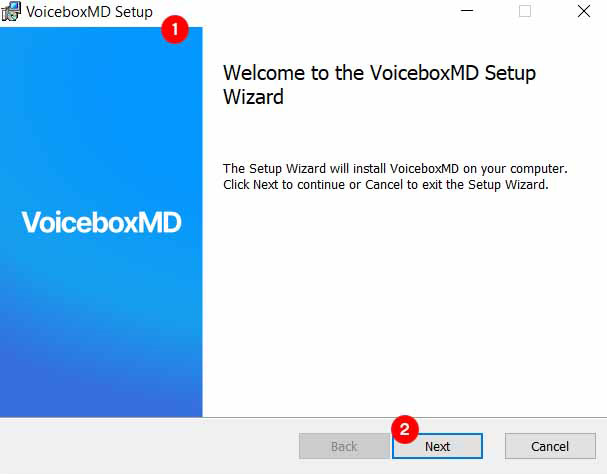
- The VoiceboxMD Setup Wizard will launch. (1)
- Click Next to proceed. (2)
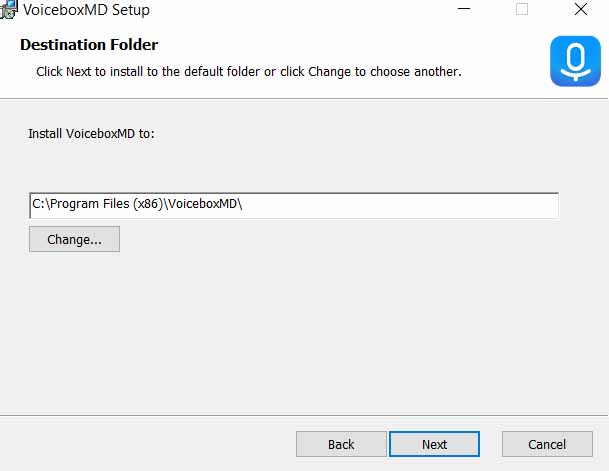
- Select the installation location (default or custom) and click Next.
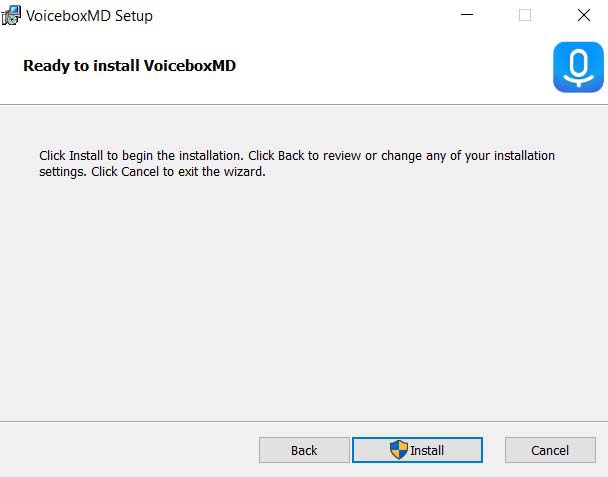
- Click Install to begin the installation. If prompted, allow the installer to make changes to your device.
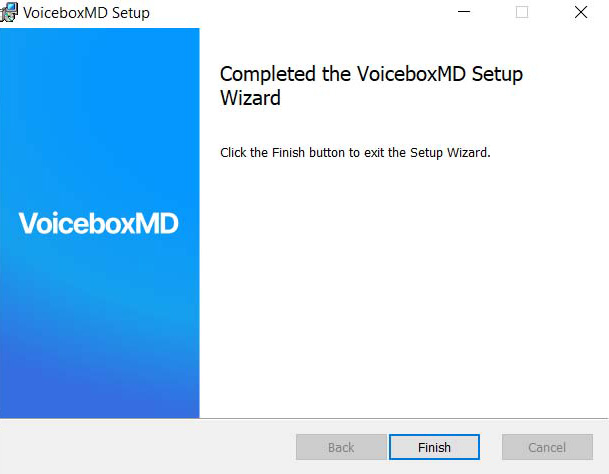
- Once complete, click Finish.
- A VoiceboxMD shortcut will appear on your desktop
Tip: To access VoiceboxMD quickly, right-click the desktop shortcut and select Pin to taskbar.
Step 4 – Verify Technical Configuration #
To ensure VoiceboxMD runs smoothly, verify these technical settings:
- Ensure there are no firewalls blocking access to the app.
- Make sure your computer is running .Net 4.5.2.
Additionally, please verify these or provide this information to your IT department to verify:
- VoiceboxMD access to the following port: Standard TCP ports for HTTP. Precisely 80, :8080, 443, and 8443.
- VoiceboxMD access to the following domains: amazonaws.com, google.com, googleapis.com, and gserviceaccount.com.