Table of Contents
Virtual Microphone (A powerful tool that allows you to chart with your iPhone) #

Choose – VBmic Receiver #

Windows Receiver


Mac Receiver

What VBmic does? #
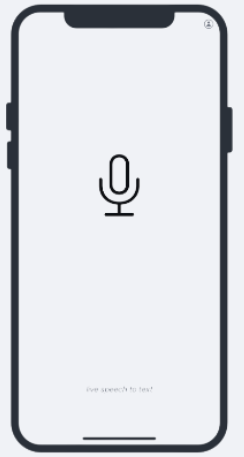
VBmic lets you dictate on your iPhone and have text appear in whatever text box is active on your Mac or Windows (for example your EHR, Word, or a browser form). Audio travels securely, speech is converted to text, and the VBmic Receiver app on the desktop puts the text at the cursor, like typing, but driven by your voice.
You need 3 items to work with iPhone as microphone.
: iPhone app vMic → Active VoiceboxMD account → desktop Receiver running and signed in.
macOS Accessibility – required for text to appear #
VBmic Receiver uses macOS Accessibility so it can send the command that inserts transcribed text into the field you are working in. This is not optional for normal operation on Mac.
Where to go #
- Open System Settings (Apple menu → System Settings).
- Go to Privacy & Security.
- Open Accessibility.
- Find VBmic Receiver in the list under “Allow the applications below to control your computer.”
- Turn the toggle ON (blue, to the right).
Troubleshooting
| Problem | Likely cause | What to try |
| Mic active on phone but no text on Mac/Windows | Accessibility OFF for VBmic Receiver | System Settings → Privacy & Security → Accessibility → enable VBmic Receiver → quit and relaunch Receiver |
| Text goes to the wrong field | Focus moved before paste | Click in the correct field before and during the utterance; avoid clicking elsewhere until text appears |
| Menu bar dot gray / won’t connect | Network environment | Check signed in on both Desktop and mobile, sign out and sign back in. |
| Amber / frequent reconnect | Unstable network | Internet connectivity |
| Clipboard seemed to change | Receiver and clipboard compatibility | Normal; very aggressive clipboard managers can interfere |