- VoiceboxMD iOS App — Getting Started Guide
- Step 1: Download & Log In
- Step 2: Start Recording Notes Immediately
- Step 3: Text Editor Toolbar
- Step 4: Open the Drawer — Access All Features
- Step 5: Scribe Mode (Solo & Doctor–Patient)
- Step 6: View & Manage Notes
- Step 7: Settings
- Step 8: Create Custom Phrases
- Step 9: Create Custom Templates
- Step 10: Save & Sync
- Quick Reference Summary
VoiceboxMD iOS App — Getting Started Guide #
Welcome to VoiceboxMD for iOS — medical dictation and AI scribe built for physicians on the go. This guide walks you through every feature of the app so you can start documenting faster from day one.
Step 1: Download & Log In #
- Download the VoiceboxMD app from the Apple App Store.
- Log in using the credentials provided when you signed up for VoiceboxMD.
- On your first login, you will be prompted to accept the AI Consent Form. Review and accept to continue.
Step 2: Start Recording Notes Immediately #
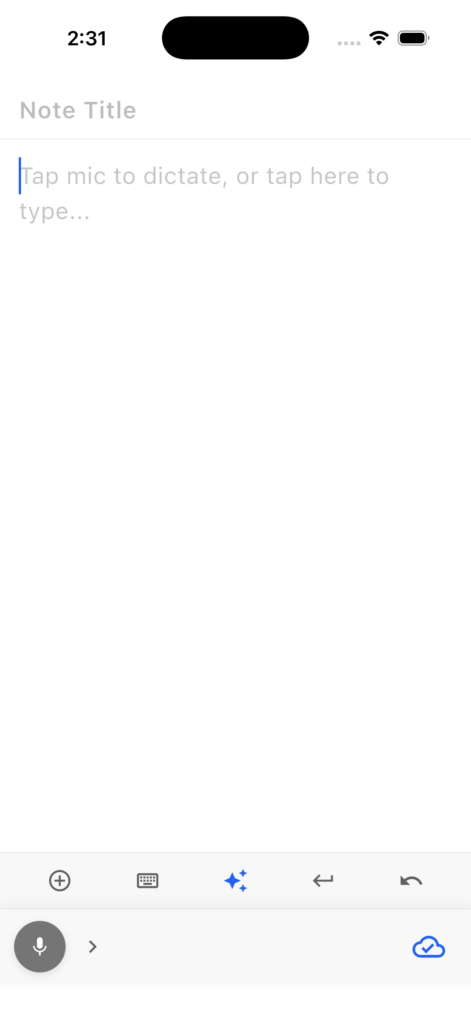
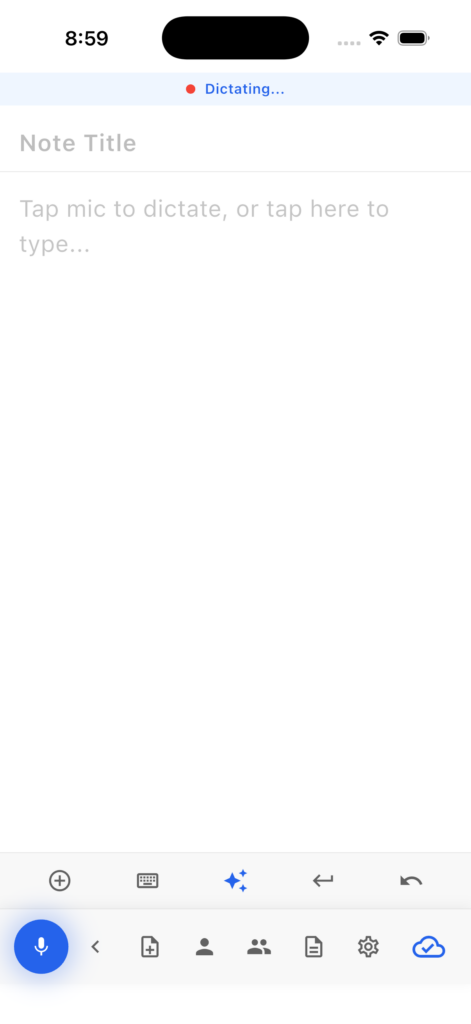
Once logged in, you land on the Speech-to-Text Editor, the main screen of the app.
- Press the record button (bottom-left microphone icon) once to begin dictating.

- Speak naturally, your words appear in the text editor in real time.
- Give your note an appropriate title at the top of the editor.
- When finished, tap the cloud/save icon (bottom-right) to save and sync your note.

Step 3: Text Editor Toolbar #
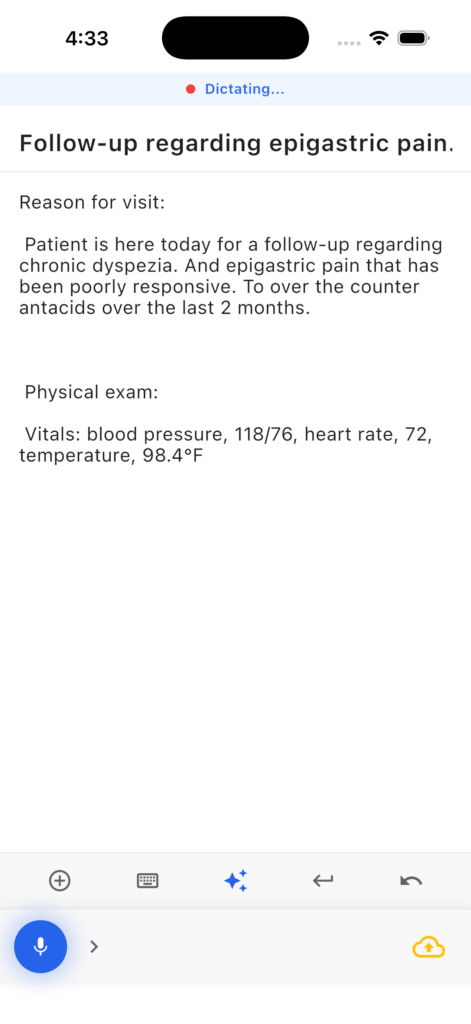
Above the record and save buttons, you will find the formatting toolbar with the following controls (left to right):

- + (Templates) — Insert a saved template into your note
- Keyboard — Toggle the on-screen keyboard for manual typing and edits
- AI Format — Let VoiceboxMD AI structure your raw dictation into clean, clinical note formatting
- New Line — Insert a new line or paragraph break
- Undo — Undo the last action
Step 4: Open the Drawer — Access All Features #
Tap the slide-open drawer at the bottom of the screen to reveal the full navigation bar. From left to right:

| New Note — Discard or save your current note and start fresh |
| Solo Scribe — AI scribe mode for dictating your clinical summary after the visit |
| Doctor–Patient Encounter — Ambient AI scribe that listens to the live conversation and extracts clinical content |
| Notes — View all saved and synced notes |
| Settings — Access app configuration and preferences |
Step 5: Scribe Mode (Solo & Doctor–Patient) #
VoiceboxMD iOS includes two powerful AI scribe modes:
Solo Scribe #
Dictate your clinical findings after the patient leaves. The AI structures your narration into a complete note using your selected template. An animated waveform displays during recording along with a timer.
Doctor–Patient Encounter #
Start recording during a live patient interaction. The AI listens to the full conversation, extracts clinically relevant content, and filters out off-topic discussion — producing a structured note matched to your template.
Both modes share the same recording interface. Select your note template from the dropdown at the top of the scribe screen (e.g., SOAP) before you begin. Use pre-made templates or your own custom templates for best results.
Step 6: View & Manage Notes #
Tap the notes icon in the drawer to open the Transcripts screen.
- All saved notes are listed with title, date/time, and mode (Dictation or Scribe — Solo).
- Use the search bar at the top to find notes quickly.
- Tap any note to open, review, and edit.
- Update dictation notes seamlessly — make changes and tap the cloud icon to save and sync.
Step 7: Settings #
Tap the gear icon in the drawer to access the Settings page. Available options include:
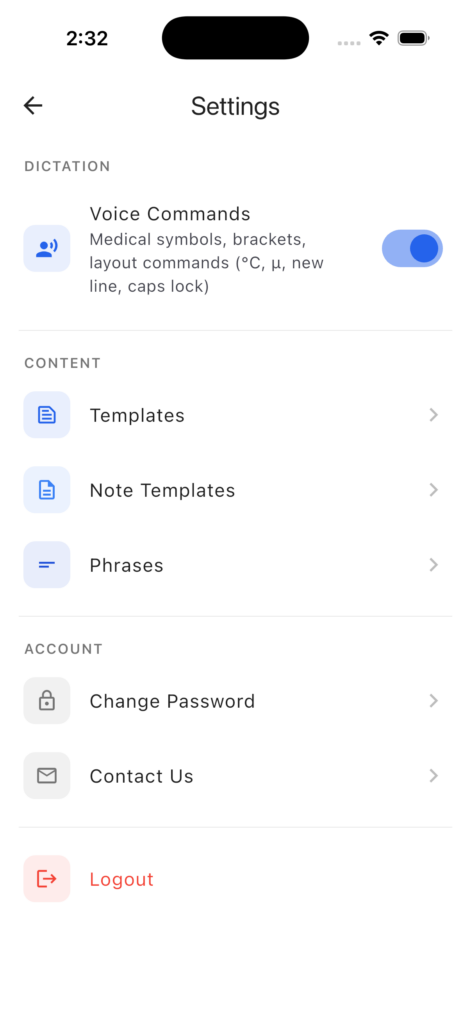
- Templates — Manage note templates and scribe templates
- Note Templates — Manage scribe-specific note templates
- Phrases — Create and manage custom voice phrases
- Change Password
- Contact Us
- Logout
Step 8: Create Custom Phrases #
Navigate to Settings → Phrases to create voice-activated shortcuts.
- Tap the + button in the top-right corner.
- In the “When I Say” field, type the trigger phrase you will speak (e.g., “nominal allergies insert”).
- In the “Print” field, type the full text that should be inserted (e.g., “1. Penicillin (rash), – No allergies…”).
- Tap Save.
Pre-loaded phrases include shortcuts for common symbols and formatting commands such as plus, minus, semicolon, ehr, quest, and slash.
Step 9: Create Custom Templates #
Navigate to Settings → Templates (or Note Templates for scribe templates).
- Tap the + button in the top-right corner.
- Enter a Command name — the trigger or label for this template (e.g., “basic”, “right CMC”, “risk assessment”).
- Enter the Output — the full template text that will be inserted (e.g., “Chief Complaint:, History of Present Illness:, Review of Systems:…”).
- Tap Save.
Pro Tip: For the best template creation experience — especially for complex, multi-section note templates and scribe templates — use VoiceboxMD on desktop (Mac or Windows). The desktop Preferences panel provides a larger editing area, AI refinement tools, and template guidelines.
Step 10: Save & Sync #

Tap the cloud icon (bottom-right) at any time to save and sync your notes. This applies to:
- New dictation notes
- Updated or edited notes
- Scribe-generated notes
All notes sync securely between your iOS device and your Mac or Windows workstation. Data is HIPAA-compliant and encrypted end-to-end.
Quick Reference Summary #
| Action | How |
|---|---|
| Start dictating | Tap record button (bottom-left) |
| Save & sync notes | Tap cloud icon (bottom-right) |
| AI-format your note | Tap AI format icon in toolbar |
| Insert a template | Tap + icon in toolbar |
| Open Solo Scribe | Open drawer → Solo Scribe icon |
| Open Doctor–Patient mode | Open drawer → Doc-Patient icon |
| View all notes | Open drawer → Notes icon |
| Create phrases | Settings → Phrases → tap + |
| Create templates | Settings → Templates → tap + |
Need help? Visit docs.voiceboxmd.com or contact support through Settings → Contact Us in the app.