Here’s what you need to know to navigate VoiceboxMD’s settings and features and get started quickly.
There are two places from which you can access different features and functions: the main interface and the system tray.
- Main interface: Moving the interface, hiding the interface, and getting started with dictating.
- Windows system tray: Changing VoiceboxMD settings, logging out, and getting help.
Navigating the app interface #
After logging in to VoiceboxMD, you can move it around (1), close it (2), or start dictating (3).
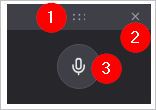
When working in the interface, it is recommended that you move it onto a neutral background, like the document you will use for the transcription, or to the top of your screen, where it won’t get in the way. Alternatively, double-click on the Move symbol to access full-screen mode. To go back to the normal-sized version, double-click on the Move symbol again.

When you are ready to start dictating, click on the microphone icon. The microphone icon will change to blue and start pulsing.

Tip: You will need to have a file ready and open before you can start dictating; otherwise, VoiceboxMD won’t know where to type.
Additional features and functions #
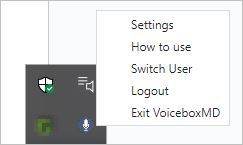
There are some advanced features that you can access by right-clicking on the VoiceboxMD icon in the Windows system tray and selecting an option.
Changing general settings #
To access the VoiceboxMD Control Panel, right-click on the VoiceboxMD icon located in the Windows system tray and select Settings. In the Settings tab, you can change your dictation language, reset your password, and configure various technical settings.
Getting help and support #
You can access help by right-clicking on the VoiceboxMD icon in the Windows system tray and selecting How to use.
For support, contact VoiceboxMD at support@voiceboxmd.com.
Switching users #
This is a useful tool for administrators to test users’ support queries. The functionality also enables businesses to configure different settings for different accents.
You can switch users by right-clicking on the VoiceboxMD icon in the Windows system tray and selecting Switch User.