Getting Started with Scribe and Templates: #
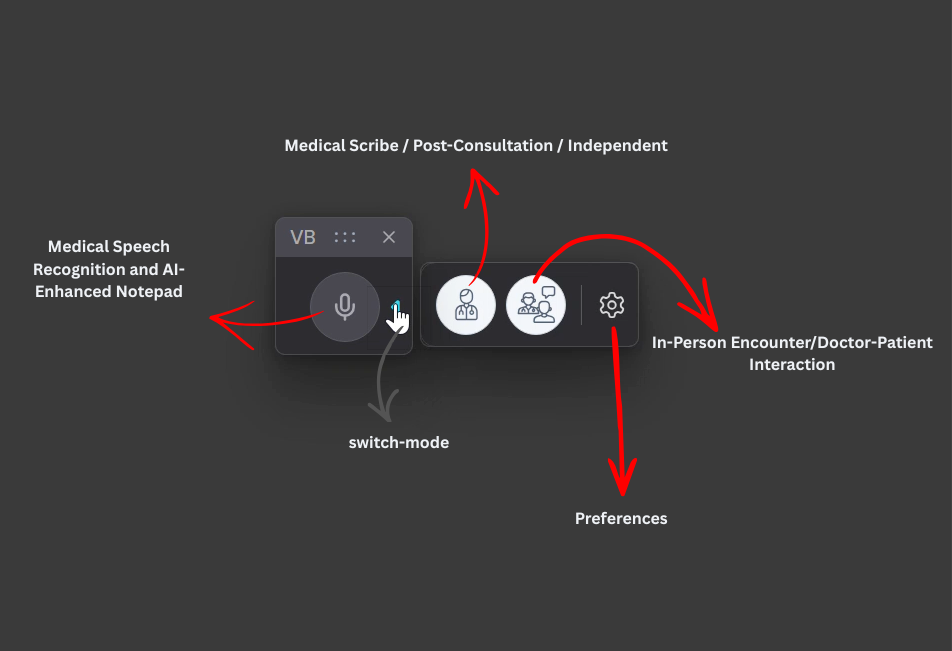
VoiceboxMD Scribe modes: #
Switch between Post-Consultation and In-Person Encounter modes
Create Tailored AI Scribe Templates #
Click on the gear icon to access the Preferences menu.
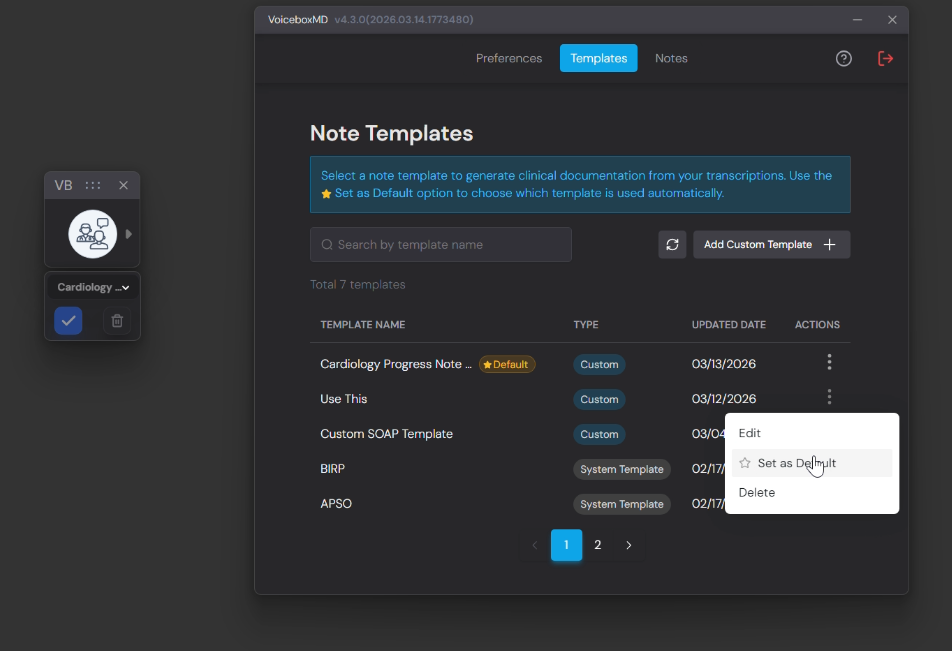
Navigate to the top menu and select the Templates option.
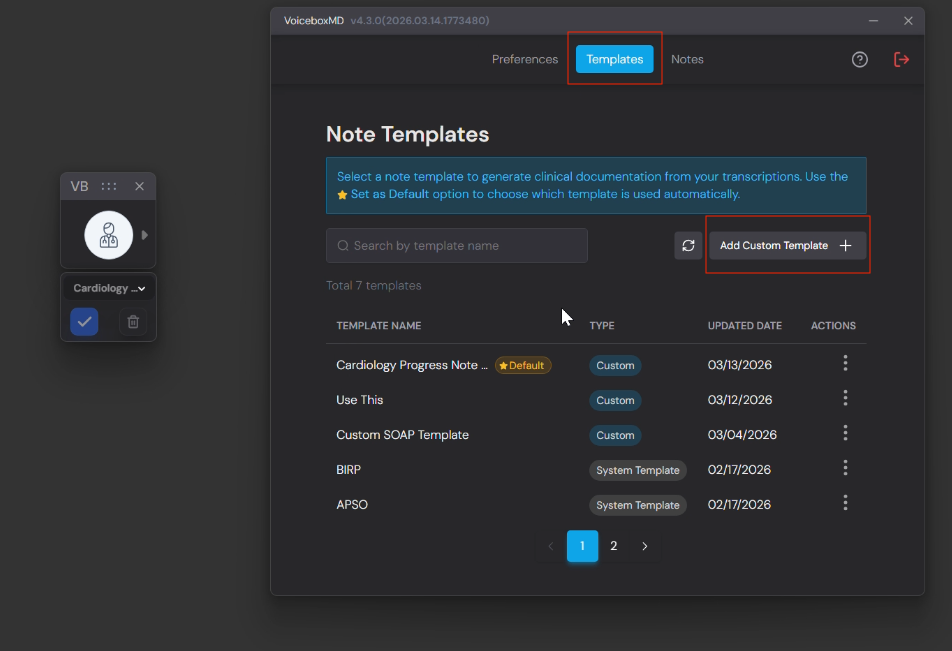
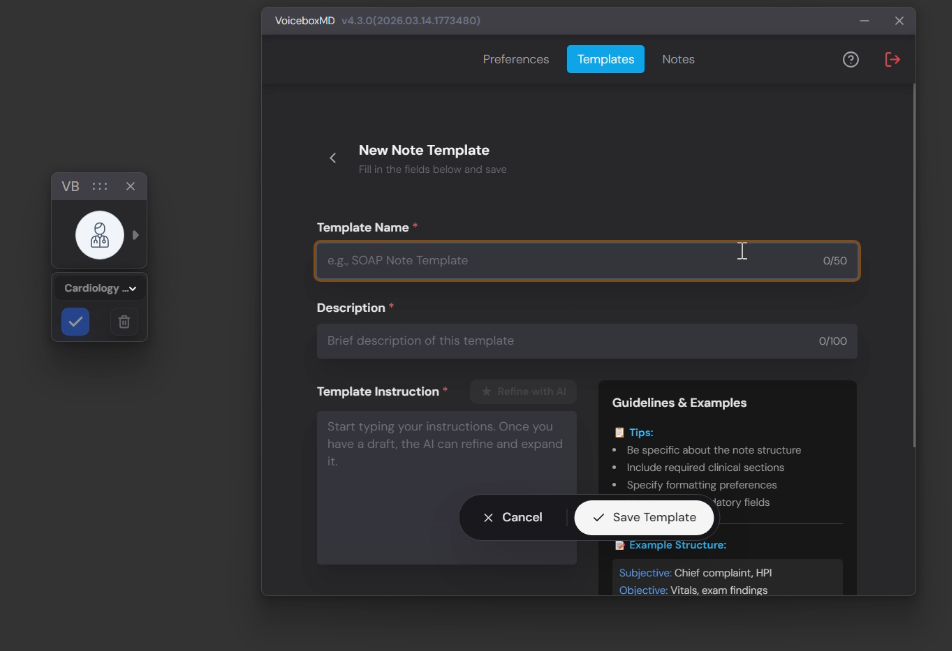
Develop the required template for your speciality and visit type
Upon completion, you may either opt to enhance your Template using AI for improved clarity or proceed to click “Save Template.“
To designate a template as the default for processing, click the three dots located to the right under the actions menu, and then select ‘Set as Default.’
Notes #
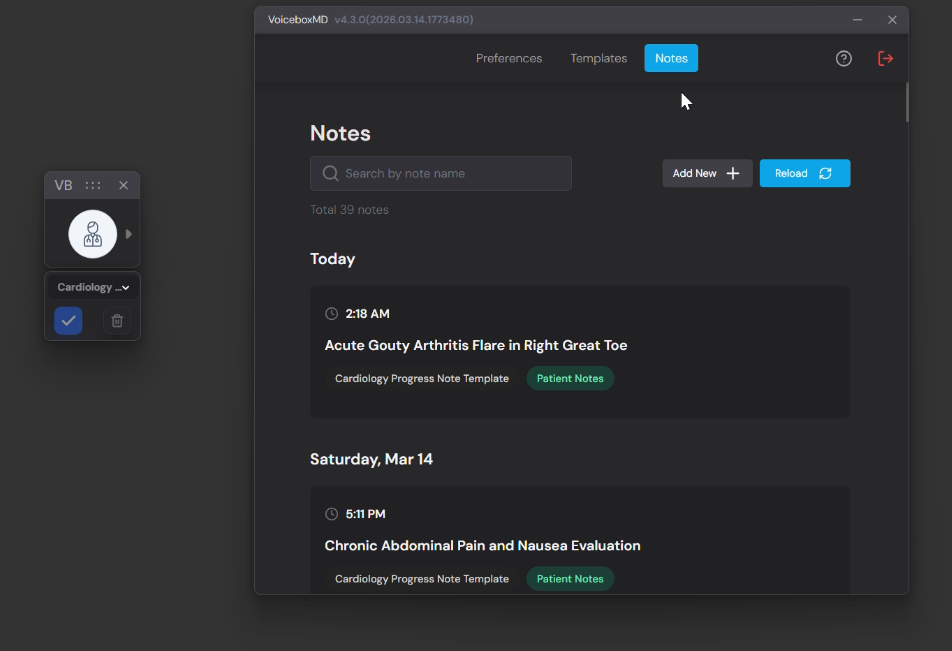
To access your Scribe notes from all encounters, including post-consultation and Patient Interactions, please navigate to Preferences and select Notes from the top navigation menu.
All notes from both desktop and mobile platforms will be consolidated in this section.
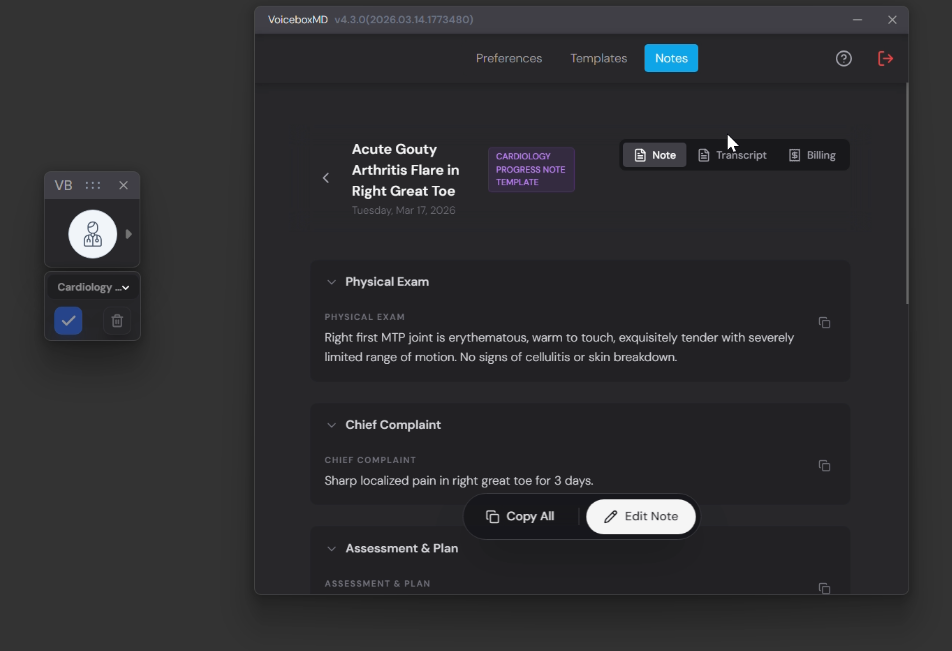
Each note is stored with pertinent details, including Comprehension, Transcripts, and Billing.
Switch Between Scribe modes: #
Please click the switch arrow on the UI to expand the slide and choose the relevant scribe for your session.
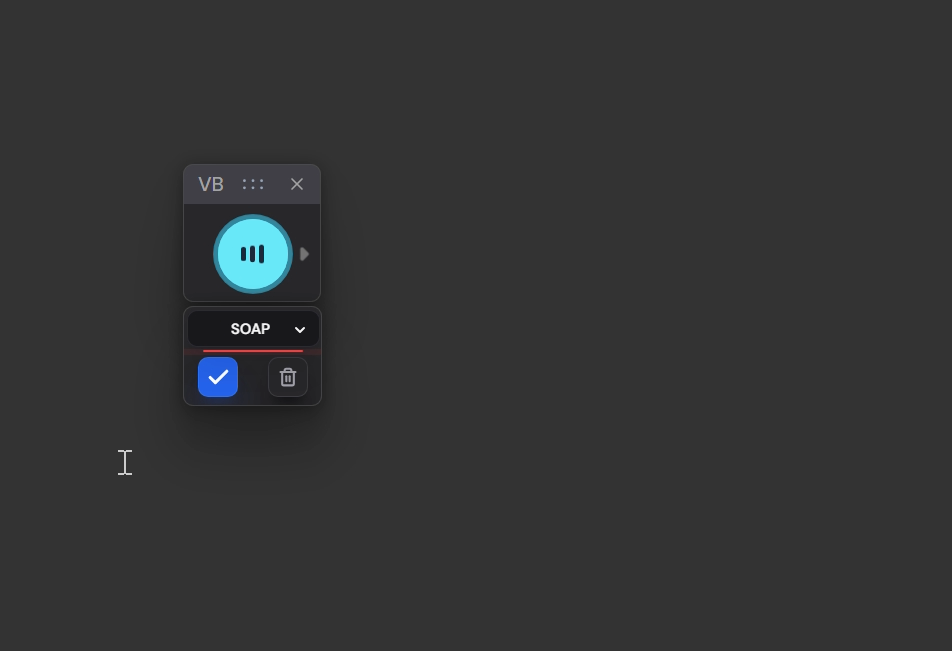
Click on Scribe icon in main VB window to get started, ensuring that it is illuminated in blue and that a waveform is visible during the sound check.