What is VoiceboxMD? #
VoiceboxMD is advanced voice recognition software designed to help medical professionals spend less time typing and more time with patients.
It transcribes your speech into text—live as you speak or from uploaded audio files—making it faster to complete clinical notes, fill medical forms, and maintain documentation.
Lightweight yet powerful, VoiceboxMD is fully customizable for any medical specialty. It saves time, reduces paperwork, ensures consistency, and can be configured for multiple users in your practice. It won’t replace your transcriptionists or administrative staff—it simply makes them faster, more accurate, and more productive.
How it works? #
When you first start using VoiceboxMD, think of it like onboarding a new team member—it needs to “learn” your terminology, style, and workflows. Within a few weeks of consistent use, it adapts to your practice’s language profile, becoming an efficient, dependable partner in your documentation process.
What You Can Do #
- Create notes & fill EHR forms faster – Just speak, and VoiceboxMD types for you.
- Use smart templates – Save chunks of frequently used text (e.g., your contact details) and trigger them with a short “code” word.
- Adapt to your specialty – Train it to understand your accent, format notes your way, and spell even the most complex medical terms correctly.
With VoiceboxMD, your voice becomes your most powerful productivity tool.
Set VoiceboxMD to Always Launch as Administrator on Windows #
Applies to: Windows 10, Windows 11 (including 24H2)
Category: Windows Troubleshooting
Why Administrator Privileges Matter
VoiceboxMD requires administrator privileges to operate correctly on Windows. The application works at the operating system level to inject text directly into EHR fields and other applications, this process needs elevated permissions that standard user accounts don’t have by default.
If you’re in a managed IT environment (hospital network, corporate device, or you are not the admin user on your Windows machine), you may need to launch VoiceboxMD as administrator each time you open it. If you notice that VoiceboxMD dictation works fine in some applications but fails to type into your EHR, missing admin privileges is the first thing to check.
How to Set VoiceboxMD to Always Run as Administrator
Follow these three steps to configure VoiceboxMD so it automatically launches with administrator privileges every time, no need to right-click each session.
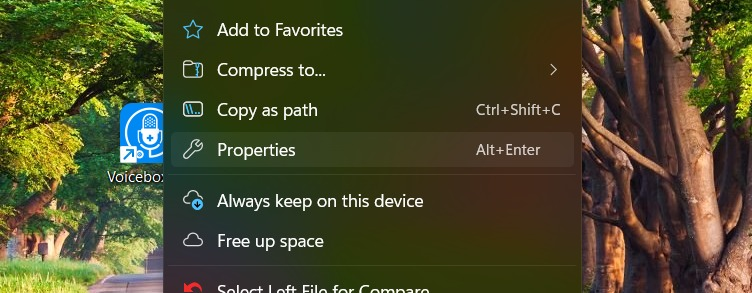
Step 1: Open VoiceboxMD Properties
Locate the VoiceboxMD shortcut on your desktop or in your Start Menu. Right-click the VoiceboxMD icon and select Properties from the context menu.
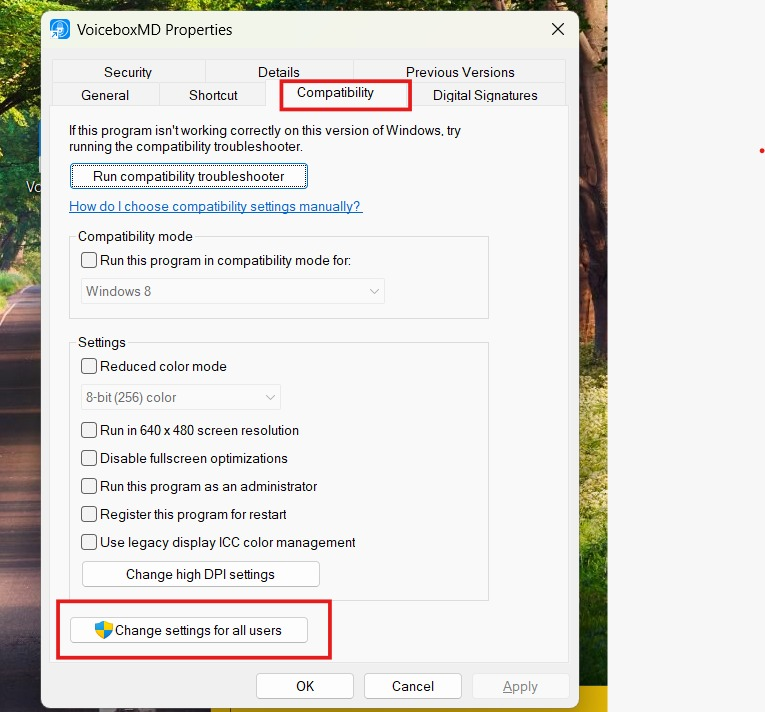
Step 2: Open Compatibility Settings for All Users
In the Properties window, click the Compatibility tab at the top. Then click the “Change settings for all users” button at the bottom of the window.
Step 3: Enable “Run as Administrator” and Apply
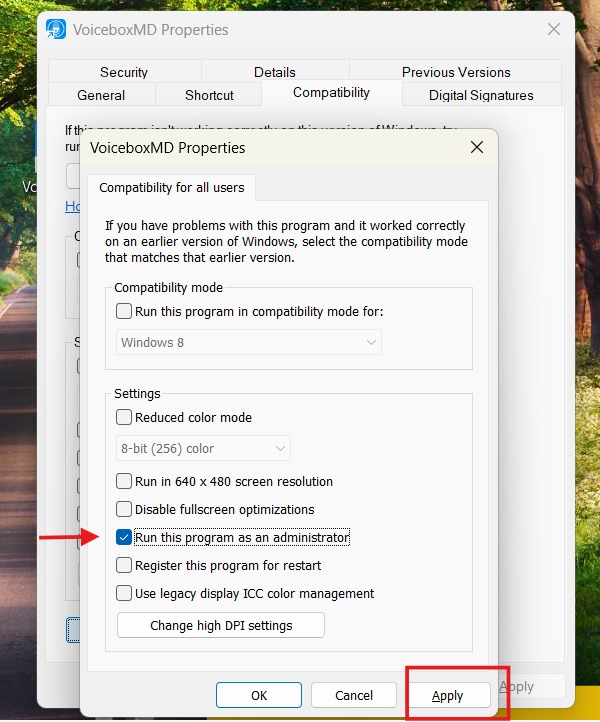
In the Compatibility for all users window:
- Under Settings, check the box next to “Run this program as an administrator”
- Click Apply
- Click OK to close both windows
That’s it. VoiceboxMD will now launch with administrator privileges automatically every time you open it no more right-clicking.
Managed IT Environments
If you are on a hospital or clinic network where your IT department manages your device, you may not have permission to change compatibility settings. In that case:
- Contact your IT department and ask them to either grant your user account local admin privileges, or configure the VoiceboxMD shortcut to run as administrator using Group Policy.
- As a workaround, you can right-click VoiceboxMD and select “Run as administrator” each time you launch the application. This achieves the same result but must be done manually every session.
Still Having Issues?
If VoiceboxMD is running as administrator and dictation still isn’t working in your EHR:
- Citrix / VMware / Remote Desktop users: Enable Remote Desktop Mode in VoiceboxMD Preferences (gear icon → Preferences tab).
- EHR dropping characters: Increase the CPM Delay value in Preferences. Start with a value of 1 and increase if needed.
- Contact support: Reach out to us a support@voiceboxmd.com for further troubleshooting.